Remove Comments & Suggestions

Remove comments and suggestions from Google Docs

Send a clean copy, without the comment trail. Remove Comments & Suggestions exports your Google Doc without comments and suggestions, and clears your own comments and suggestions in one click.

Trusted by individuals from these teams

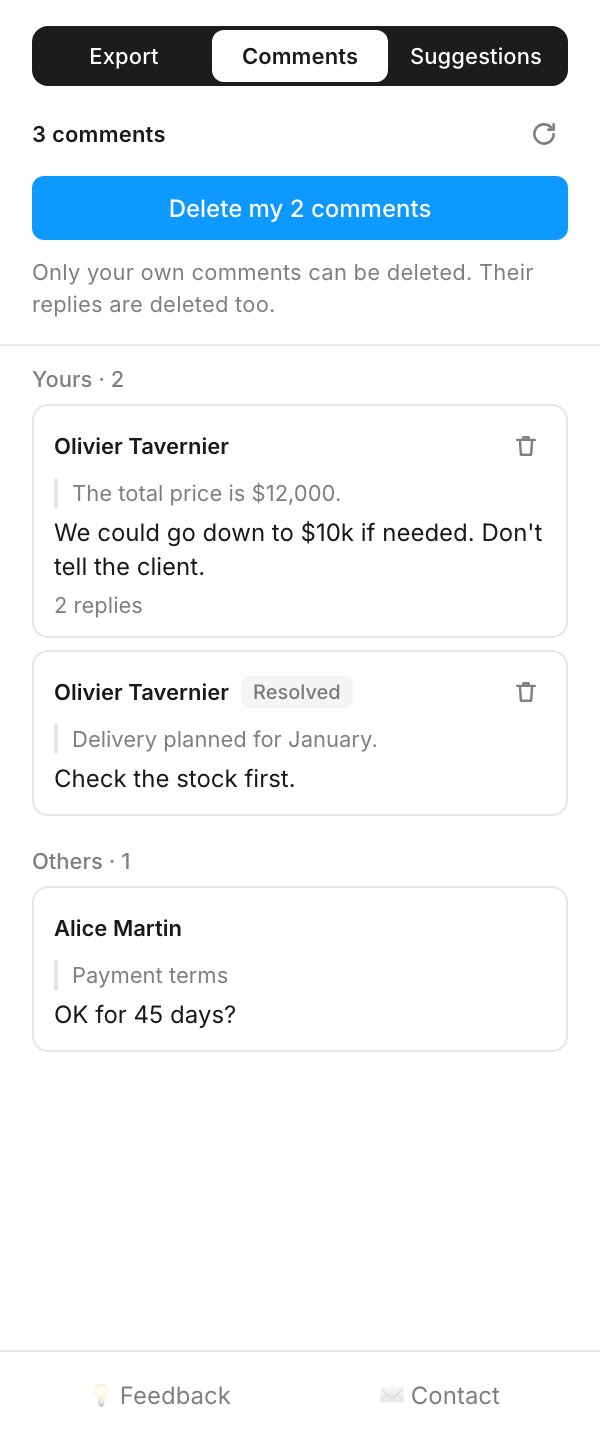
The Remove Comments & Suggestions panel inside Google Docs, showing the Comments tab

01

A clean copy, in one click.

Download your document as DOCX, PDF or ODT without comments and suggestions. Your Google Doc stays exactly as it is.

02

Your comments, gone.

See every comment in the document in one list, then delete yours one by one or all at once.

03

No more stray suggestions.

List the pending suggestions and delete yours, one by one or all at once.

Everything you need to clean up a document

Export as DOCX, PDF or ODT

Pick a format and download. Comments and suggestions are both removed by default, and you can keep either one. A PDF never contains comments.

Suggestions rejected, original text kept

When suggestions are removed, the exported file keeps the original text, as if every pending suggestion had been rejected.

Your Google Doc stays untouched

Exporting never modifies your document. The clean file downloads straight to your computer.

Every comment in one list

The Comments tab lists all the comments in the document, yours and other people’s, so you know what’s in there before you share it.

Delete your comments in bulk

Delete your own comments one by one or all at once. Deleting a comment also deletes its replies.

Clear your suggestions

The Suggestions tab lists the pending suggestions. Delete yours one by one or all at once.

Frequently asked questions

Does exporting change my Google Doc?
No. Remove Comments & Suggestions creates a separate file (DOCX, PDF or ODT) and downloads it to your computer. Your Google document is never modified. When suggestions are removed, they are rejected in the exported file, so the original text stays.
Can I delete other people’s comments?
No. Google only lets the author of a comment delete it, so Remove Comments & Suggestions can only delete your own comments and suggestions. Other people’s comments are still listed, so you can see them. Deleting a comment also deletes its replies.
Does a PDF export contain comments?
No. A PDF never contains comments. For DOCX and ODT, comments are removed by default; untick the option if you want to keep them.
Does it work in Google Slides or Sheets?
No. Remove Comments & Suggestions is a Google Docs add-on. It opens as a panel on the right of your document, with three tabs: Export, Comments and Suggestions.
Is it free?
You can try it for free: one free export per file type (DOCX, PDF and ODT), 3 single comment deletions and 3 single suggestion deletions per week, plus one “delete all my comments” and one “delete all my suggestions”. A one-time payment of €5 unlocks everything for life.
Is my document data safe?
Comments and suggestions are read and deleted through Google’s APIs during your session only, and are never stored. The exported file downloads straight to your browser. Usage analytics never include comment text, document names or document IDs.
What language is the add-on in?
The add-on’s interface is in English.

Share clean documents.